Create an RSVP QR code for your invitations
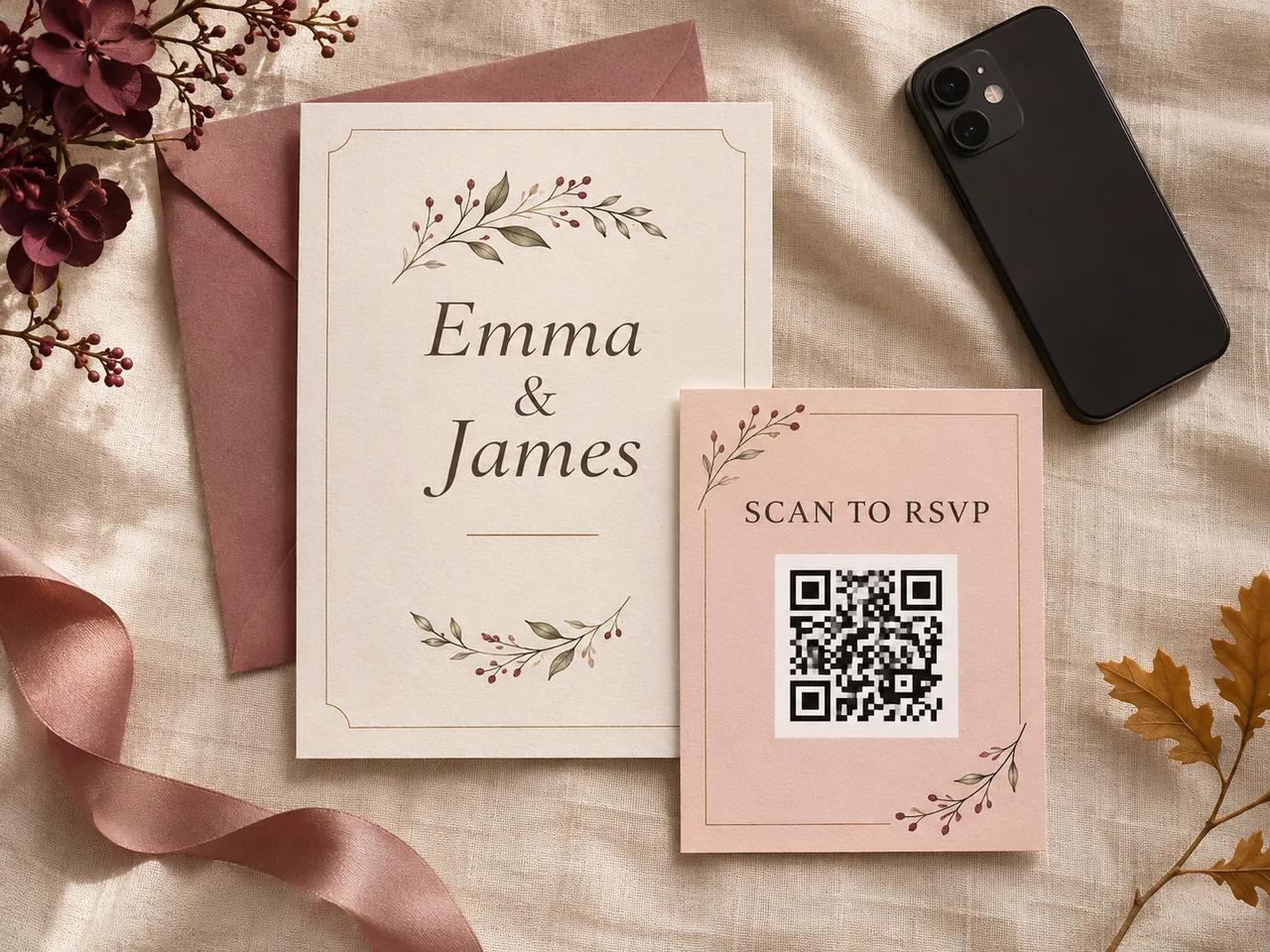
An RSVP QR code opens your event’s reply form when guests scan it. Add it to a printed invitation so guests can reply on their phones without an account.
How to make an RSVP QR code
 Step 1
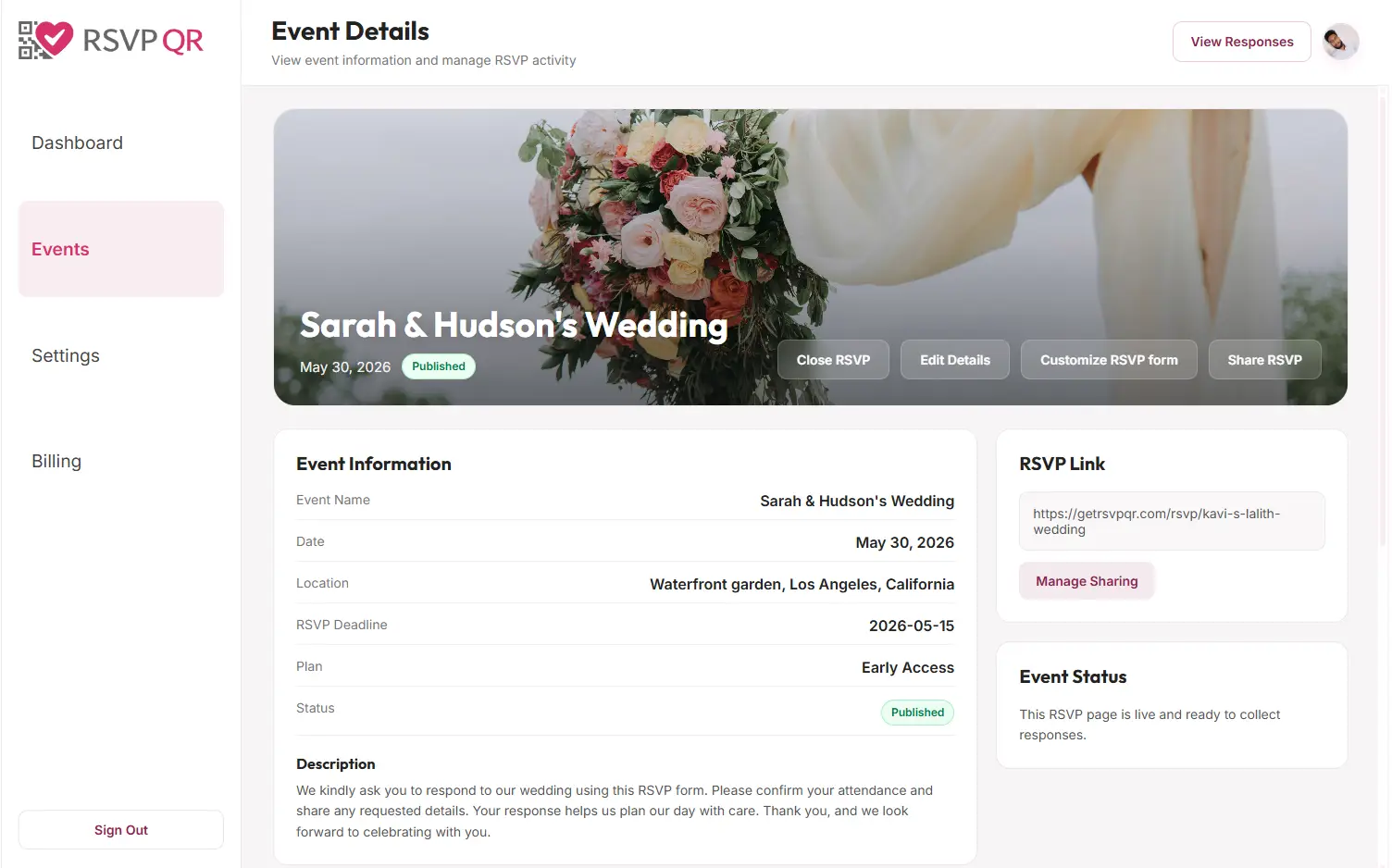
Create and publish your event
Add your event details and choose what to ask guests. Preview your RSVP page, then publish it to get your QR code and link.
 Step 2
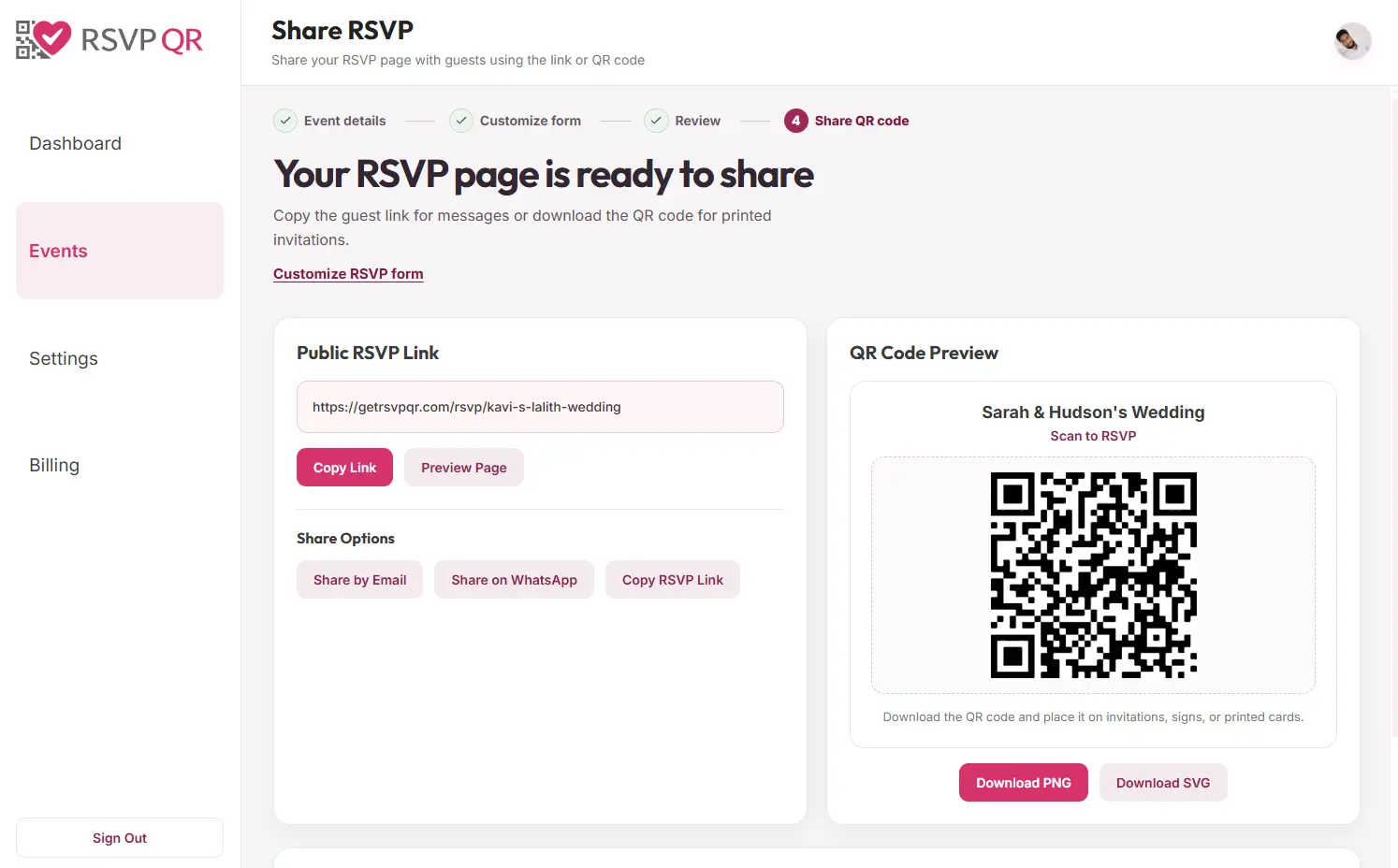
Add the code to your invitation
Open Share RSVP and download your QR code as a PNG or SVG. Place it on your invitation or RSVP insert. Send the RSVP link when you invite guests by text or email.
 Step 3
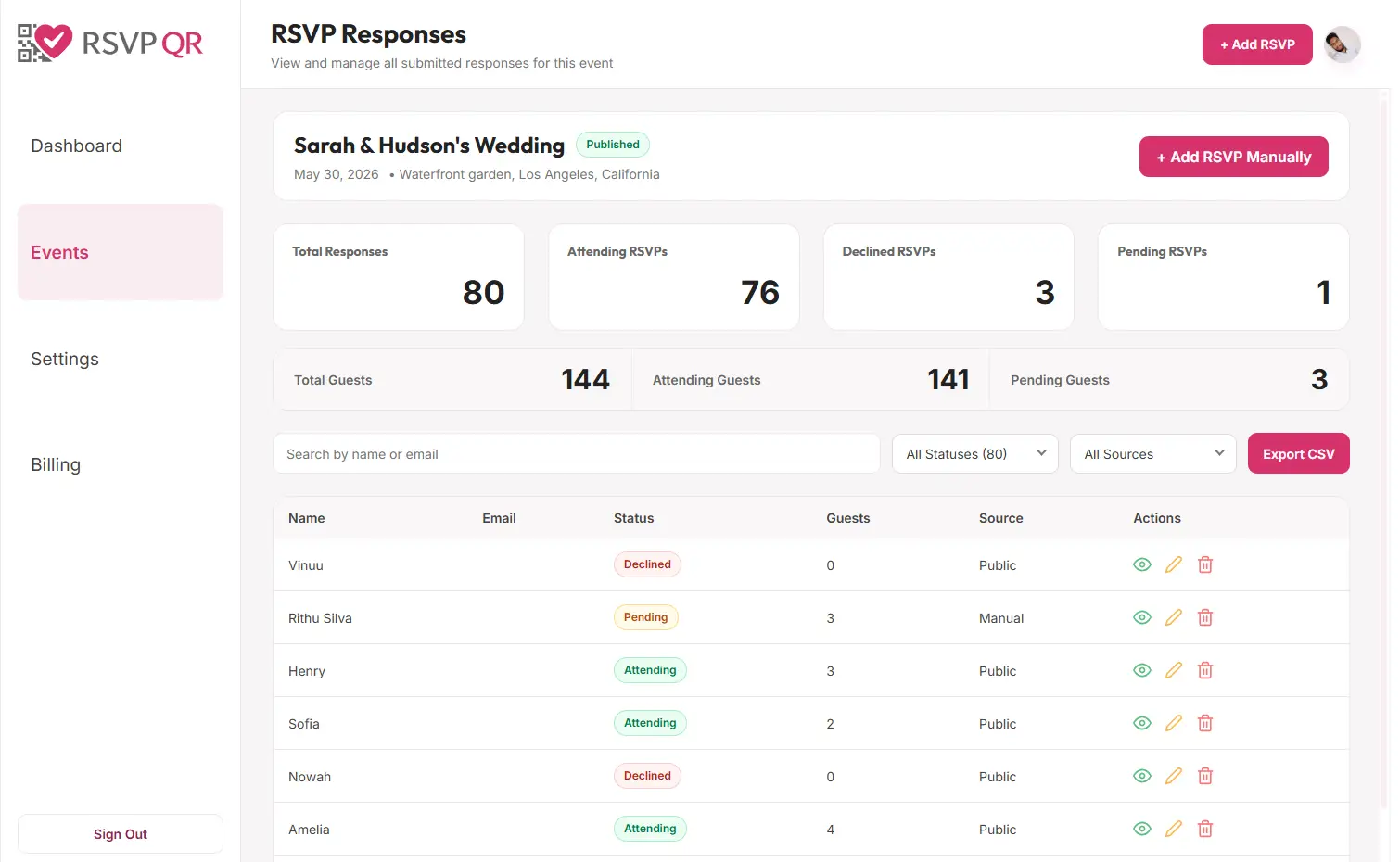
Track replies as they come in
Guests scan the code and reply on their phones. Your dashboard shows who said yes, who declined, and how many guests to expect. You can count adults and children separately.
Use an entry pass to check in guests
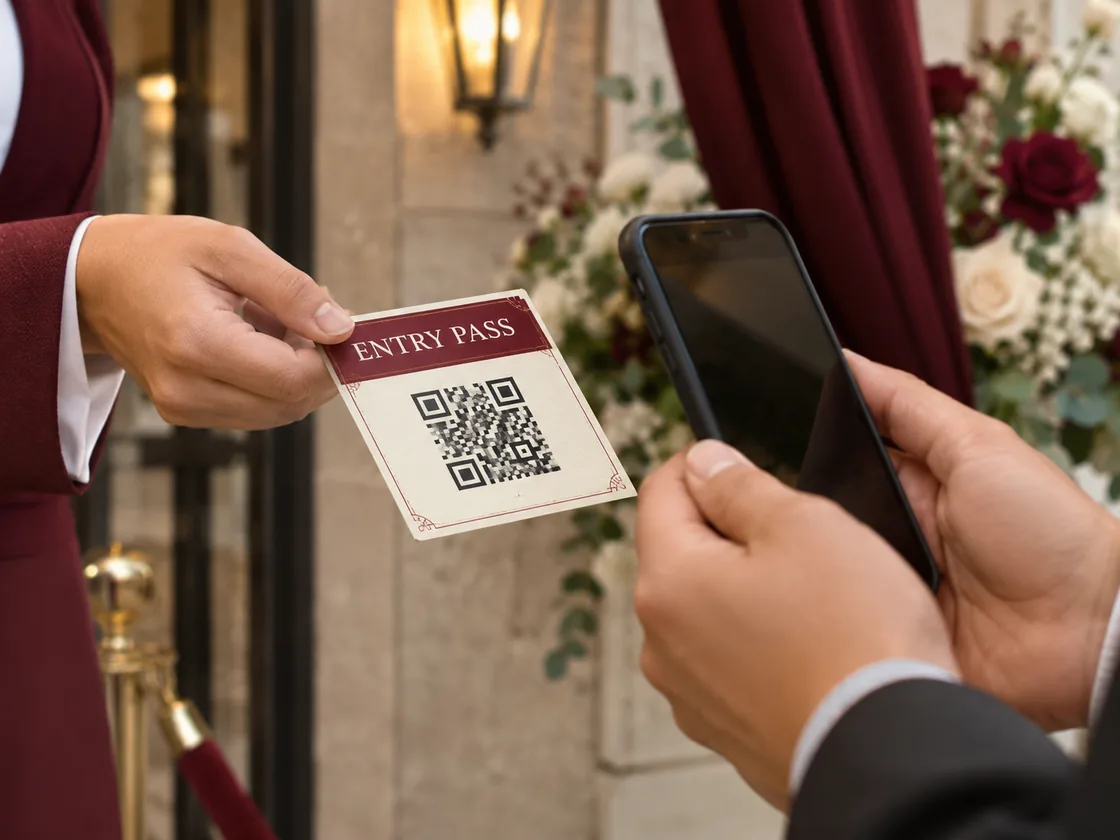
When you turn on guest check-in, guests who RSVP yes can download an entry pass. Each pass covers everyone on that RSVP.
- Invitation QR code
- Guests scan it before the event to open your RSVP form.
- QR entry pass
- Scan it with your phone camera at the door. Open the link and sign in as the host to record who arrived.
RSVP QR code FAQs
Explore wedding RSVPsDo guests need an app or account to RSVP?
Guests can reply in their browser without an app or account. They can scan the code with their phone camera or open the RSVP link directly.
Where should I put the QR code on a printed invitation?
Place it on the back of the invitation or on a separate RSVP card. Add “Scan to RSVP” next to it so guests know what the code opens.
Should I download the PNG or SVG?
Use PNG for most invitation editors and digital sharing. Use SVG if your design tool or printer accepts it and you need to resize the QR code.
Can one RSVP include several guests?
Yes. Guests can reply for the people on their invitation if your form allows a guest count. When check-in is enabled, that RSVP has one entry pass for everyone on the reply.